Risks
The risk register lists the risks of a system security plan (SSP), with their likelihood, impact, owner and review deadline, and takes each one through its lifecycle. This page is for compliance and GRC users.
How it works
Each risk belongs to one SSP. A risk can come from evidence, from the risk templates that policies define, or be created by hand. It moves through these statuses: Open, Investigating, Mitigating Planned, Mitigating Implemented, Risk Accepted, Remediated and Closed. A risk's page shows which moves its current status allows.
An accepted risk has a review deadline. At each review you either extend the acceptance with a new deadline, or send the risk back to Investigating.
Before you start
- The recordings use UI
v2.15.2and APIv0.22.5in a temporary environment with fictional data. - To see risks, you need
risk:read. To create and change them, a role such ascontributororauditor. - To see the risks of every SSP under Global > Analysis > Risks, you need
admin:manage.
Use the risk register
-
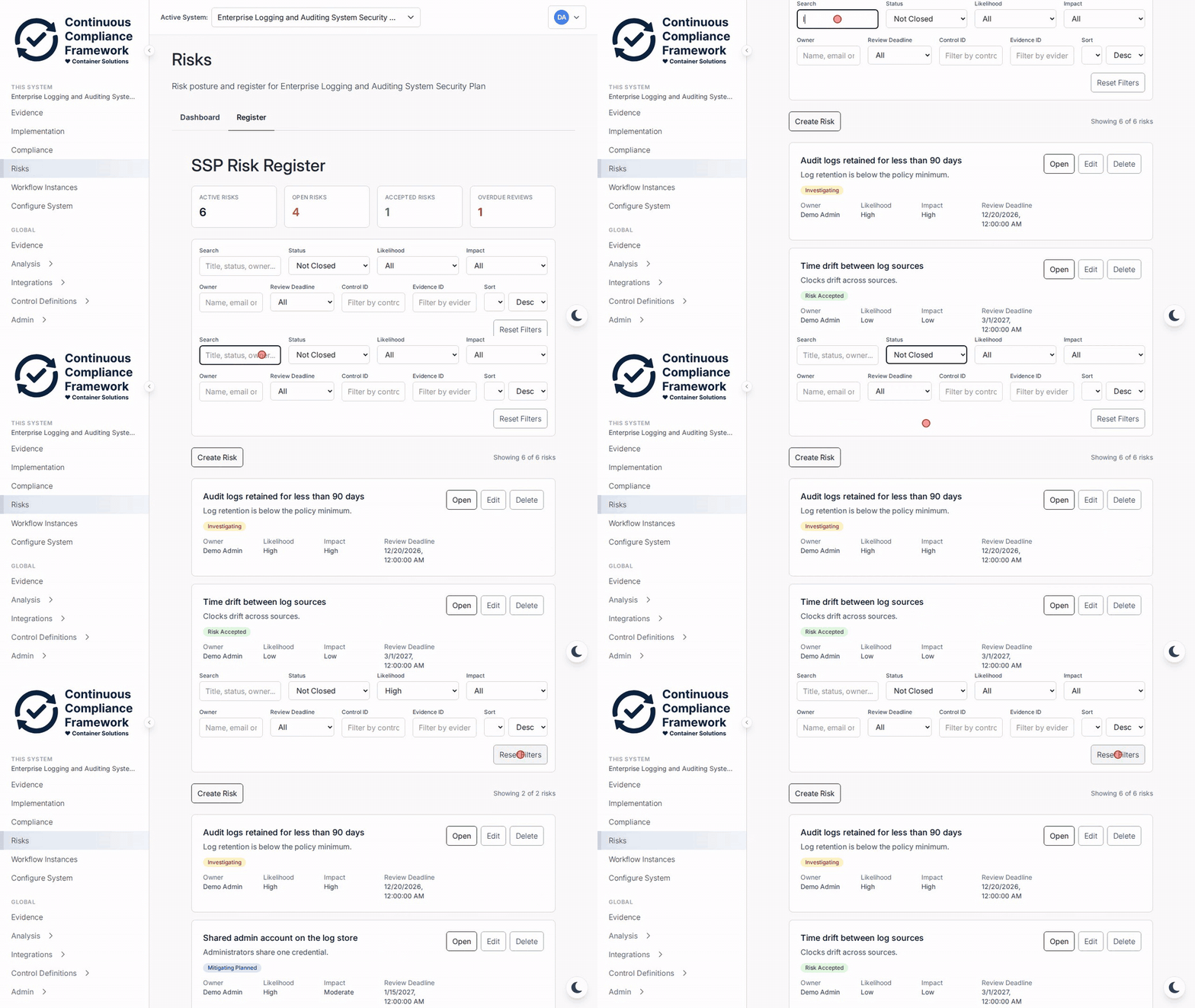
Select This System > Risks for the active system, or the Risks tab of an SSP, then the Register tab. The cards at the top count Active Risks, Open Risks, Accepted Risks and Overdue Reviews.
-
Narrow the list with Search, Status, Likelihood, Impact, Owner, Review Deadline, Control ID and Evidence ID, and order it with Sort. Reset Filters clears them.
-
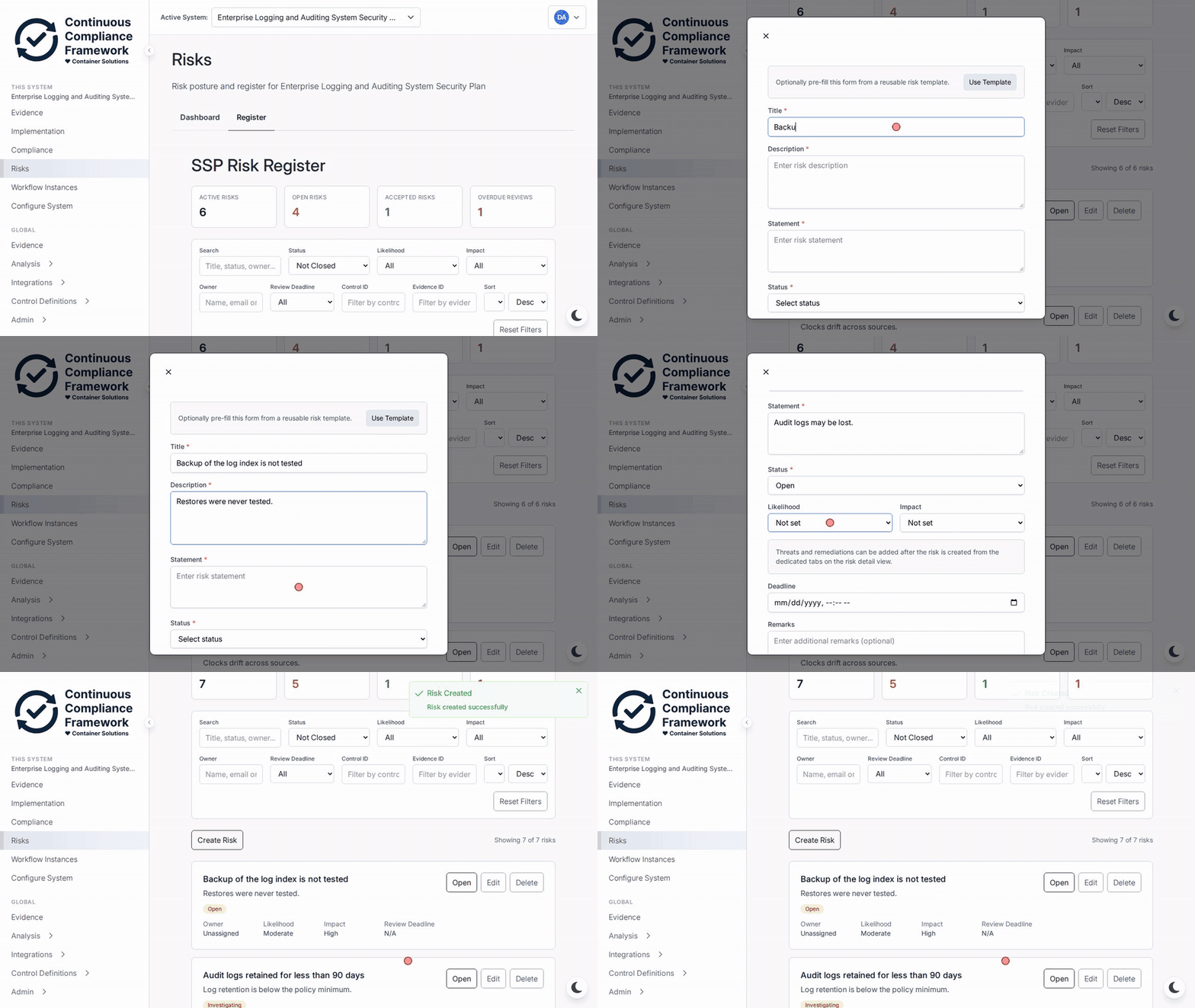
Select Create Risk to add one. Fill in the title, description, statement, status, likelihood and impact, then select Create.
-
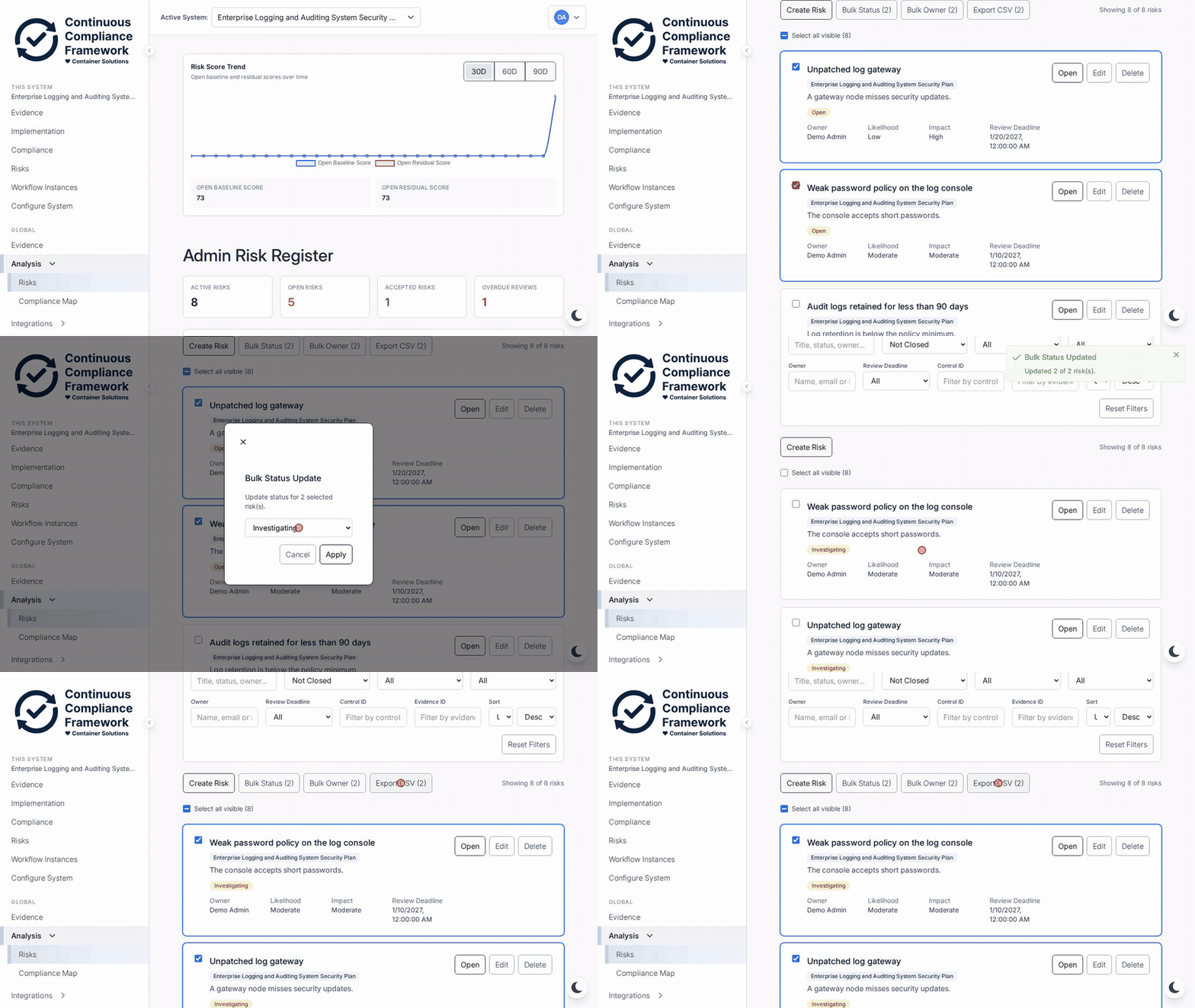
Under Global > Analysis > Risks, select risks to change them together: Bulk Status, Bulk Owner, or Export CSV.
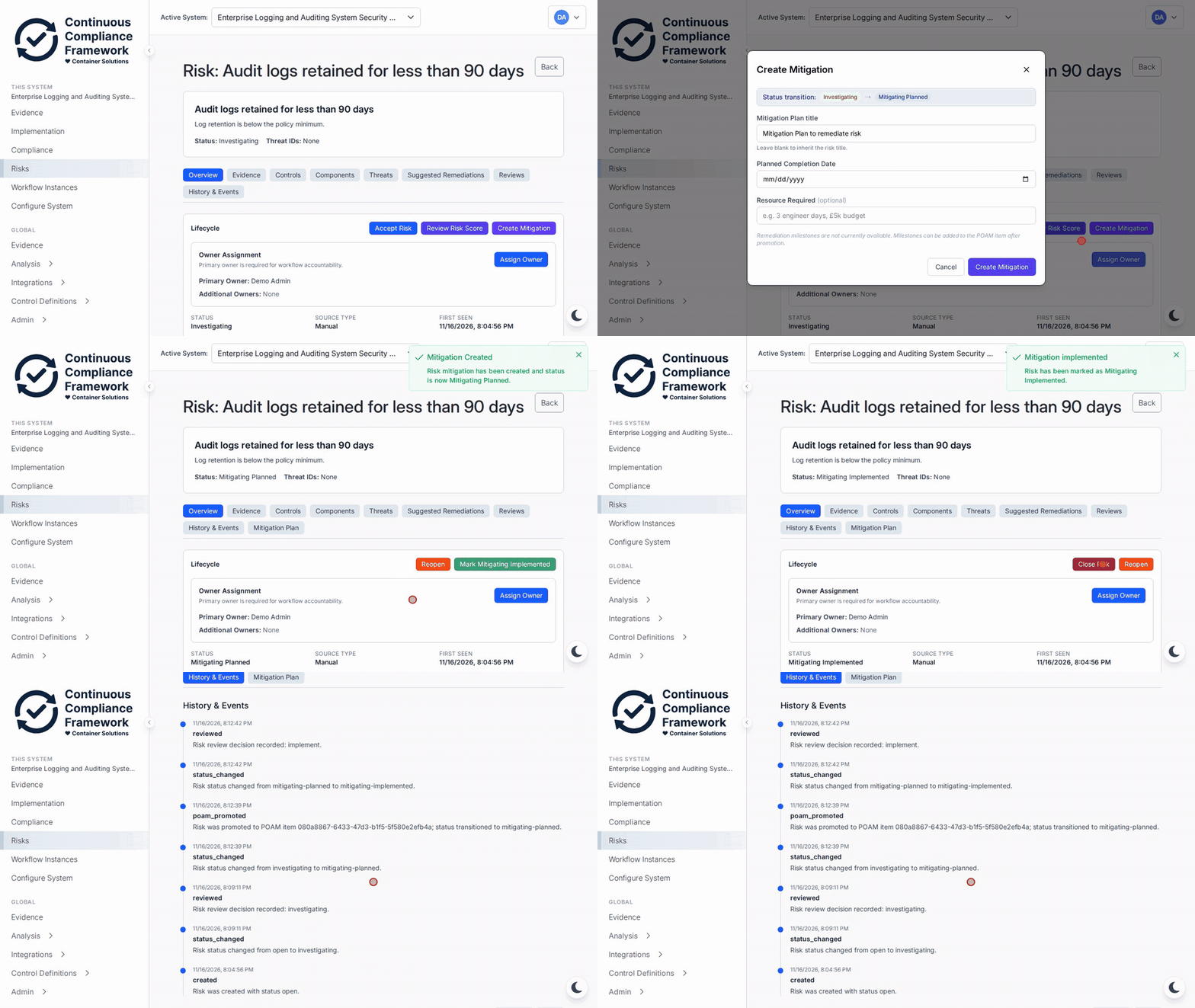
Select Open on a risk for its page. There you:
- move it through its lifecycle: Start Investigation, Create Mitigation, Mark Mitigating Implemented, Accept Risk, Review Risk, Reopen or Close Risk;
- link the Evidence, Controls and Components it's about, and its Threats;
- record Suggested Remediations and their tasks;
- read its Reviews and its History & Events.
To create a risk from a piece of evidence, open the evidence and select Create Risk under Associated Risks; see Evidence.