Evidence
In the Continuous Compliance Framework (CCF), evidence is what CCF Agents, and anything else with a token, send the API about the systems they check: a result, satisfied or not, with labels that say where it comes from. This page is for compliance and GRC users who look for evidence and link it to controls.
How it works
Each evidence record has labels, such as _plugin=apt-versions or environment=production. Records with the same stable stream identifier form one evidence stream. Each new record updates the stream, and the earlier ones become its history.
You find evidence by searching its labels, on one of two pages: Evidence under This System lists the evidence in the active system's scope, and Evidence under Global lists all evidence. An evidence filter is a saved search, linked to the controls it's evidence for. The Compliance of a system comes from the evidence its controls' filters find.
Before you start
- The recordings use UI
v2.15.2and APIv0.22.5in a temporary environment with fictional data. - To search all evidence, you need
evidence:read. To search the active system's evidence,ssp:read. To see evidence filters,filter:read. - For This System > Evidence, an active system whose scope has at least one entry. See Define the scope of a system.
- To create filters, a role that can change filters, such as
contributor.
Search evidence
Both Evidence pages work the same way. They differ in which evidence they search.
Global evidence
Global > Evidence searches all evidence the API holds, whatever system it belongs to. It's the start page after you sign in.
This System evidence
This System > Evidence searches only the evidence in the active system's scope, so charts, results and the filters you save are about that system. Switch system with the Active System menu and the page reloads.
- Until you choose an active system, the page asks you to select one.
- When the system's scope has no entries, the page says Define this system's scope and Define the scope opens the Scope tab. A system with no scope has no evidence; it isn't treated as "all evidence".
Run a search
-
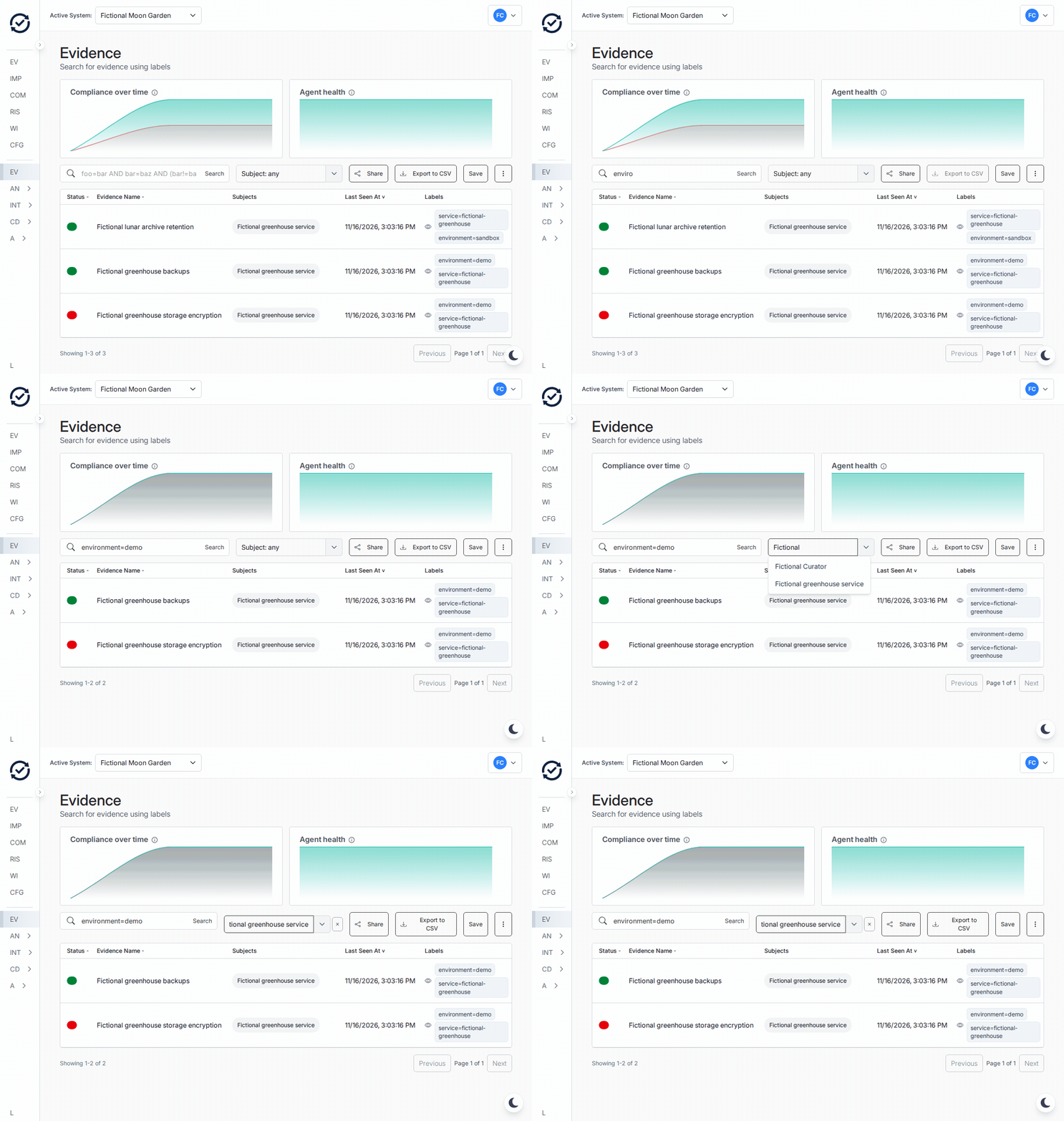
Open one of the Evidence pages. The two charts at the top show Compliance over time, the satisfied and unsatisfied results over time, and Agent health, the number of agents sending heartbeats over time.
-
Type a query in the search box and select Search. A query compares labels with
=or!=, joined withANDorOR. Group with parentheses to mix them:environment=production AND (_plugin=apt-versions OR _plugin=local-ssh)Without
ANDorORbetween them, conditions are joined withAND. MixingANDandORat the same level without parentheses is an error. -
Optionally, narrow the results to one subject with Subject: any next to the search box. It's only there when the API supports subjects.
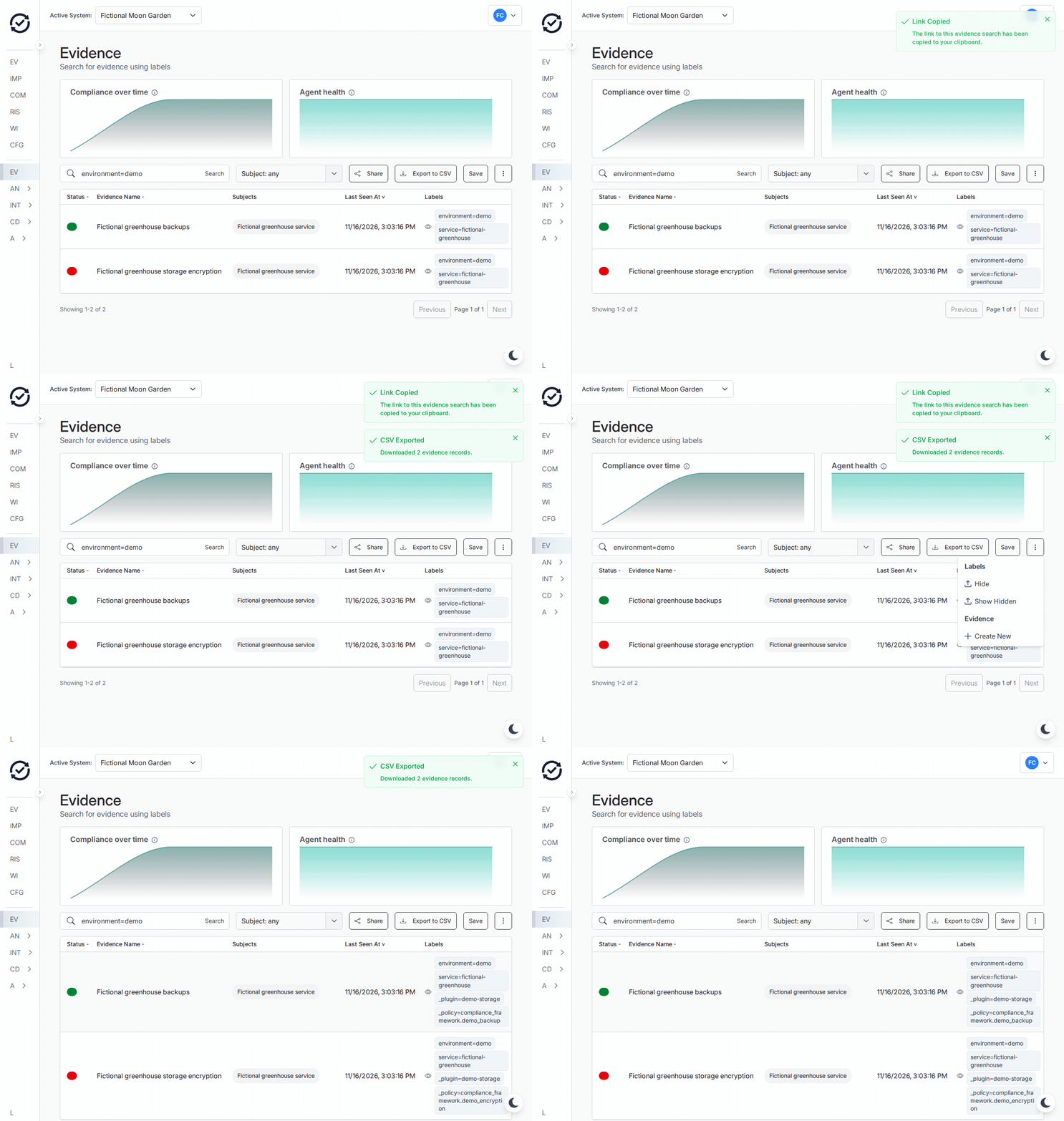
The query is part of the page's address. Share copies the address, so others can open the same search. Export to CSV downloads the results. The menu at the end of the row shows or hides the labels, including the hidden ones whose names start with _.
Look into one record
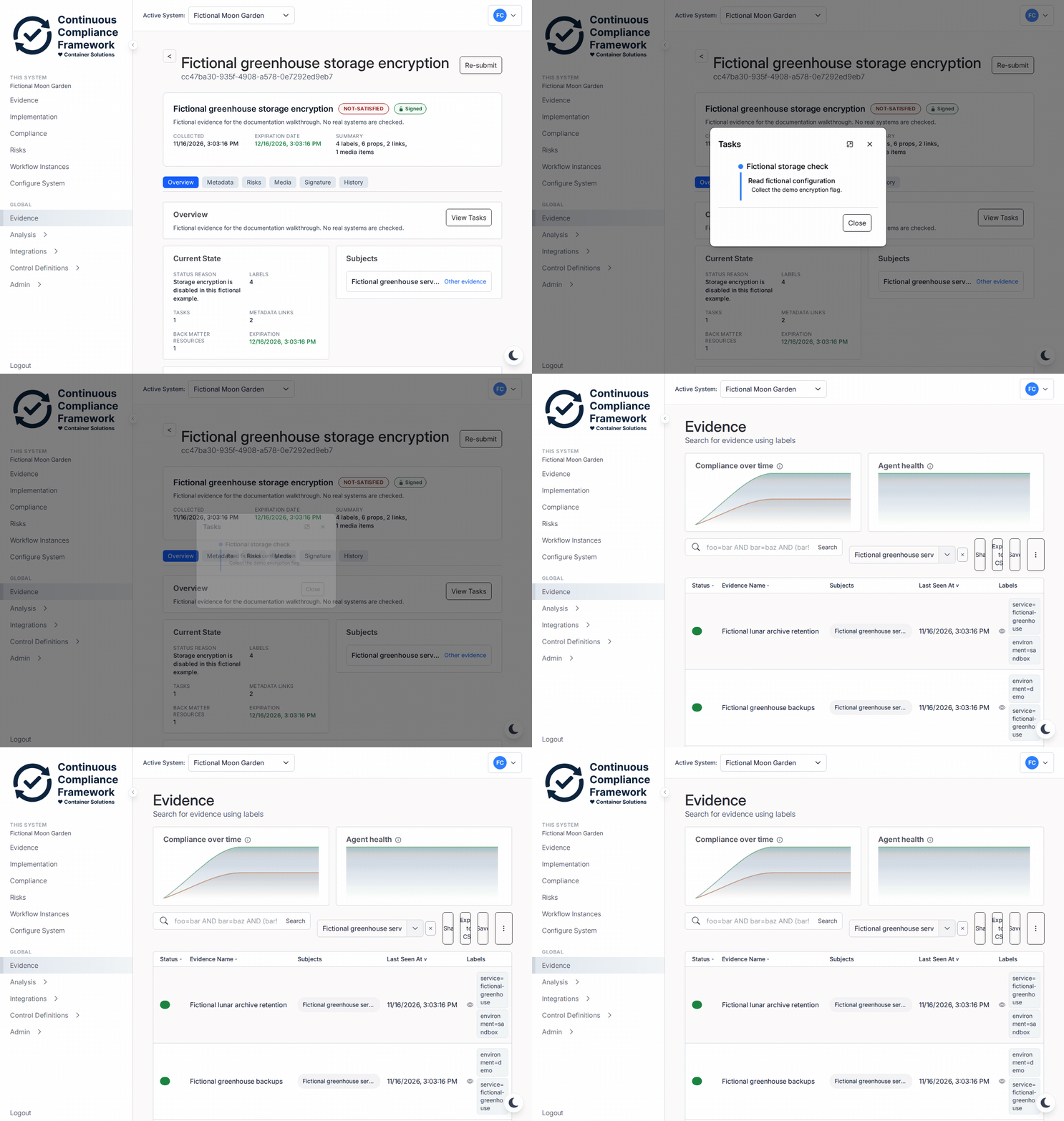
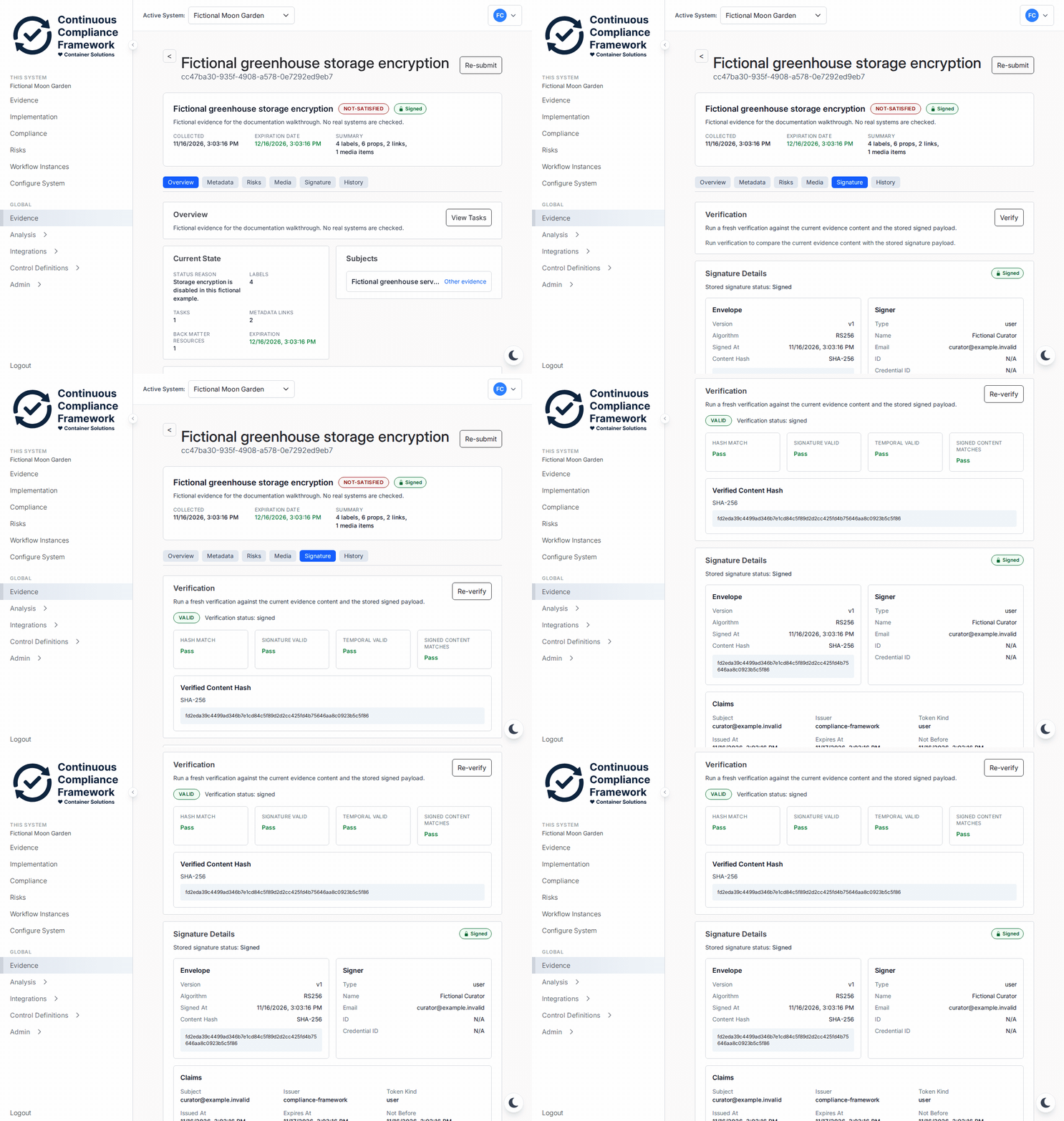
Select a record to open its detail page. The summary shows its status, collection time, expiration, and signature status. Use the tabs below it to inspect the record.
Overview and tasks
In Overview, read Current State for the status reason. Subjects identifies what the evidence is about; Other evidence opens a search for that subject. Select View Tasks to inspect the activities and steps recorded with the evidence.
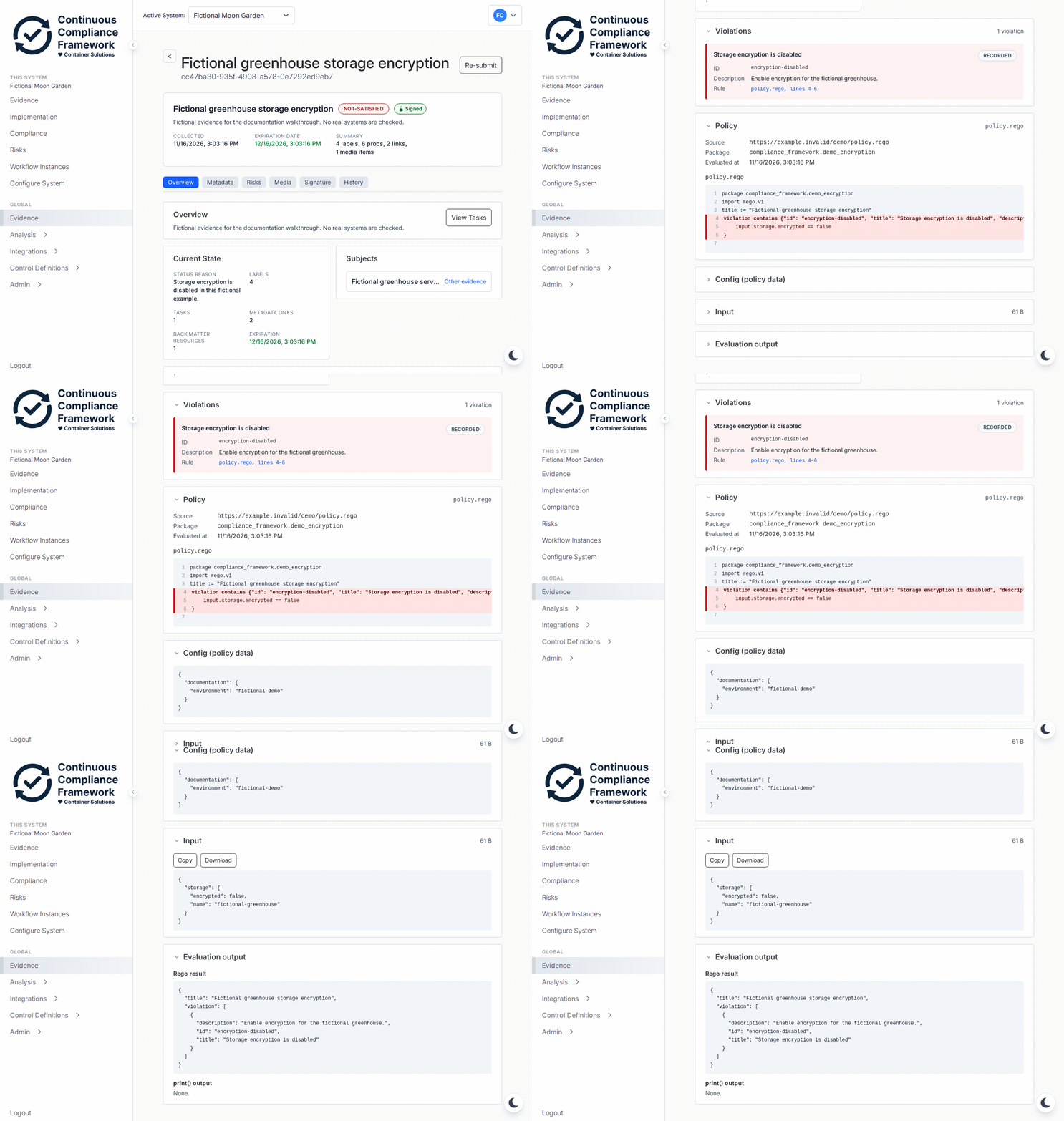
Policy evaluation
When the agent stores the evaluation artifacts, Overview also shows the policy replay. Violations lists the failed checks. Select a rule's file and line range to find it in Policy.
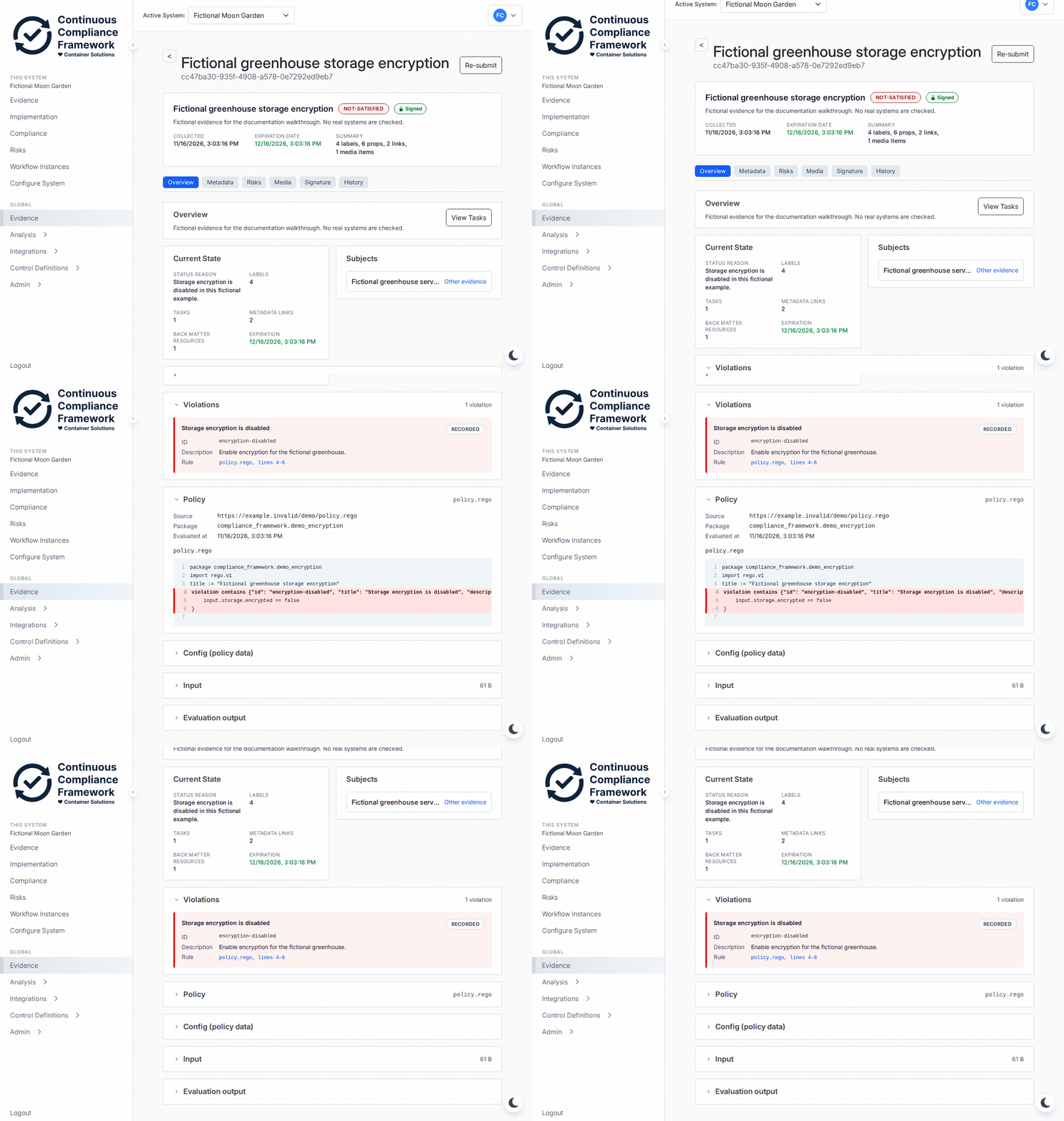
Expand Config (policy data), Input, and Evaluation output to inspect the values used by the policy and the replay's result. If the replay differs from the recorded result, the page shows the differences. Evidence without stored artifacts has no playback sections.
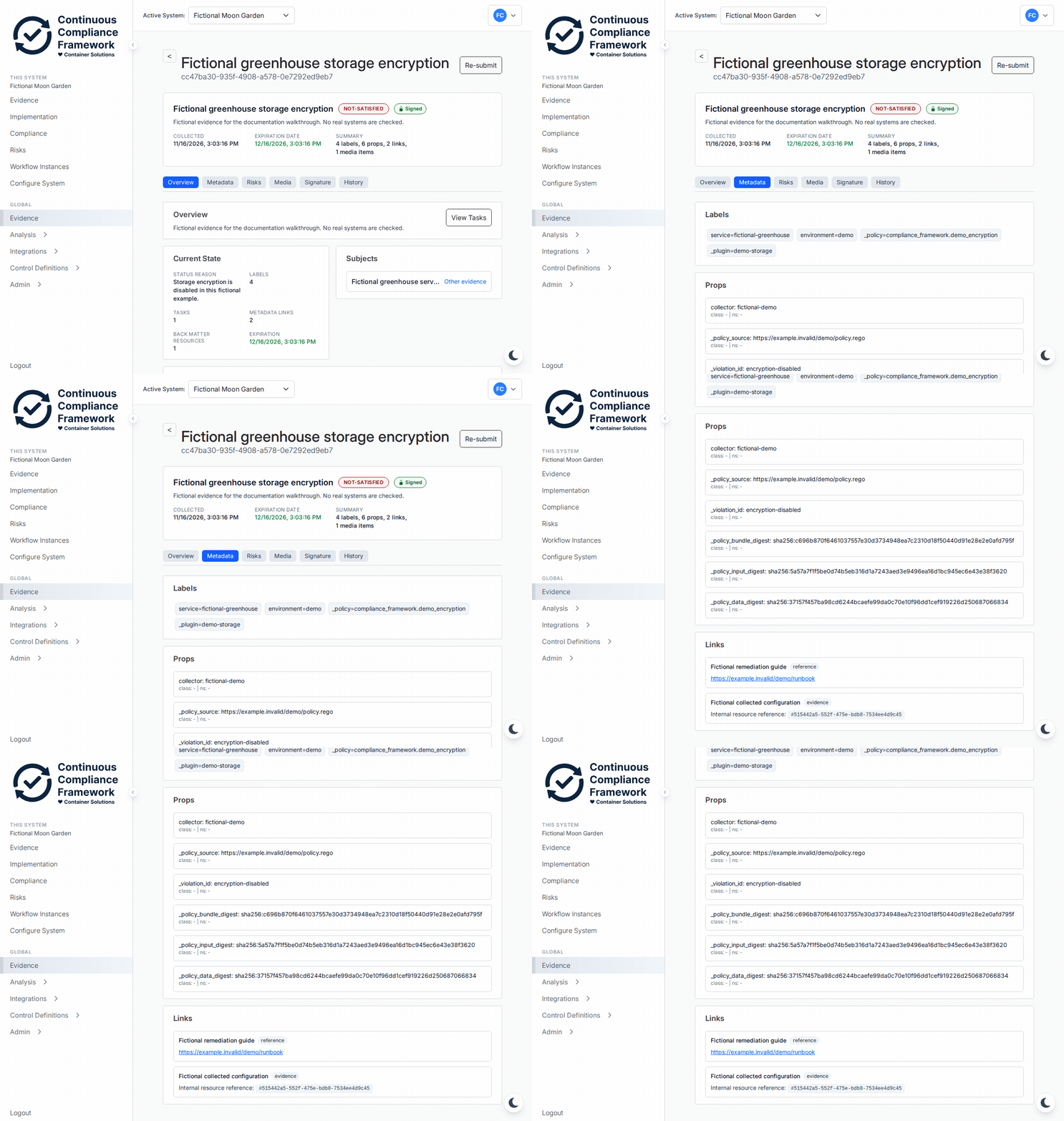
Metadata
Open Metadata to inspect Labels, Props, and Links, including the hidden labels and artifact digests that identify the source of the result.
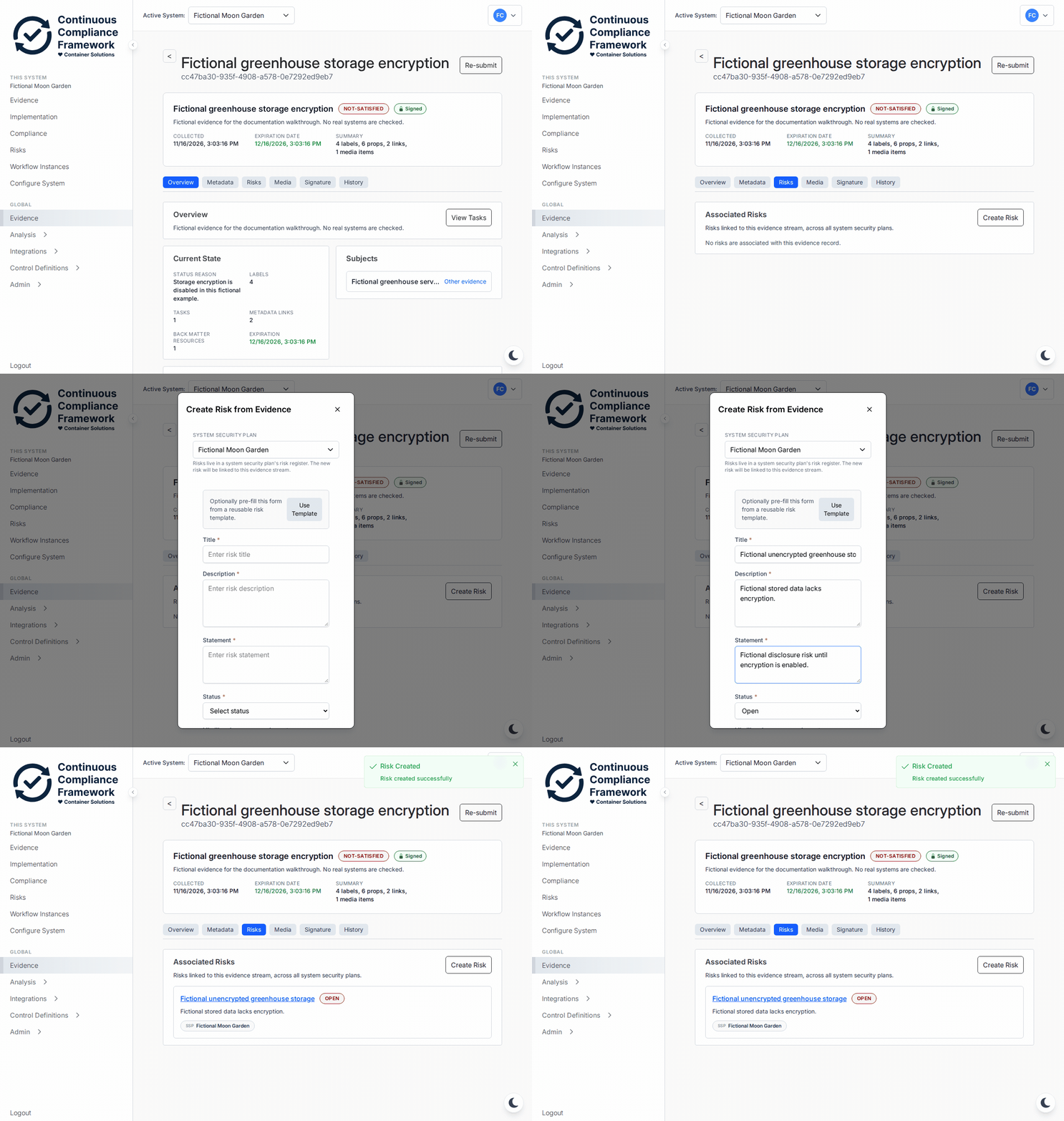
Risks
Open Risks to see Associated Risks linked to the evidence stream across SSPs. Select Create Risk, choose the SSP, and complete the form to create a risk linked to this stream. You need permission to read risks to see the list, and permission to create risks to add one.
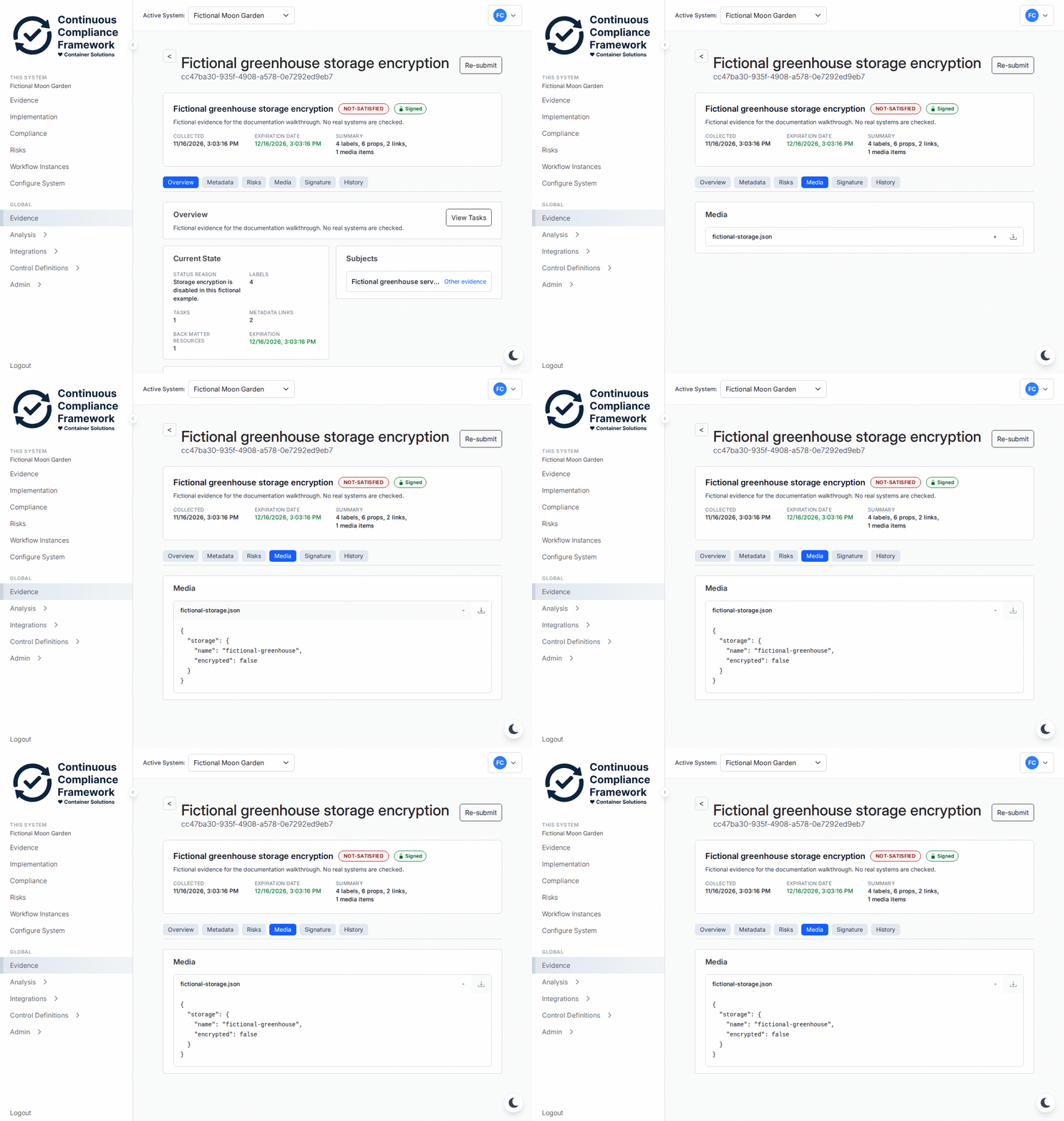
Media
Open Media to inspect the resources linked from the evidence's back matter. Expand a text attachment to read it, or use its download button to save it. A record without linked resources has no media to display.
Signature
Open Signature and select Verify to check the record against its stored signed payload. Verification shows the result of each check. Below it, Signature Details shows the stored envelope and signer. Verification checks integrity; the evidence's compliance status still comes from the check that produced it.
History
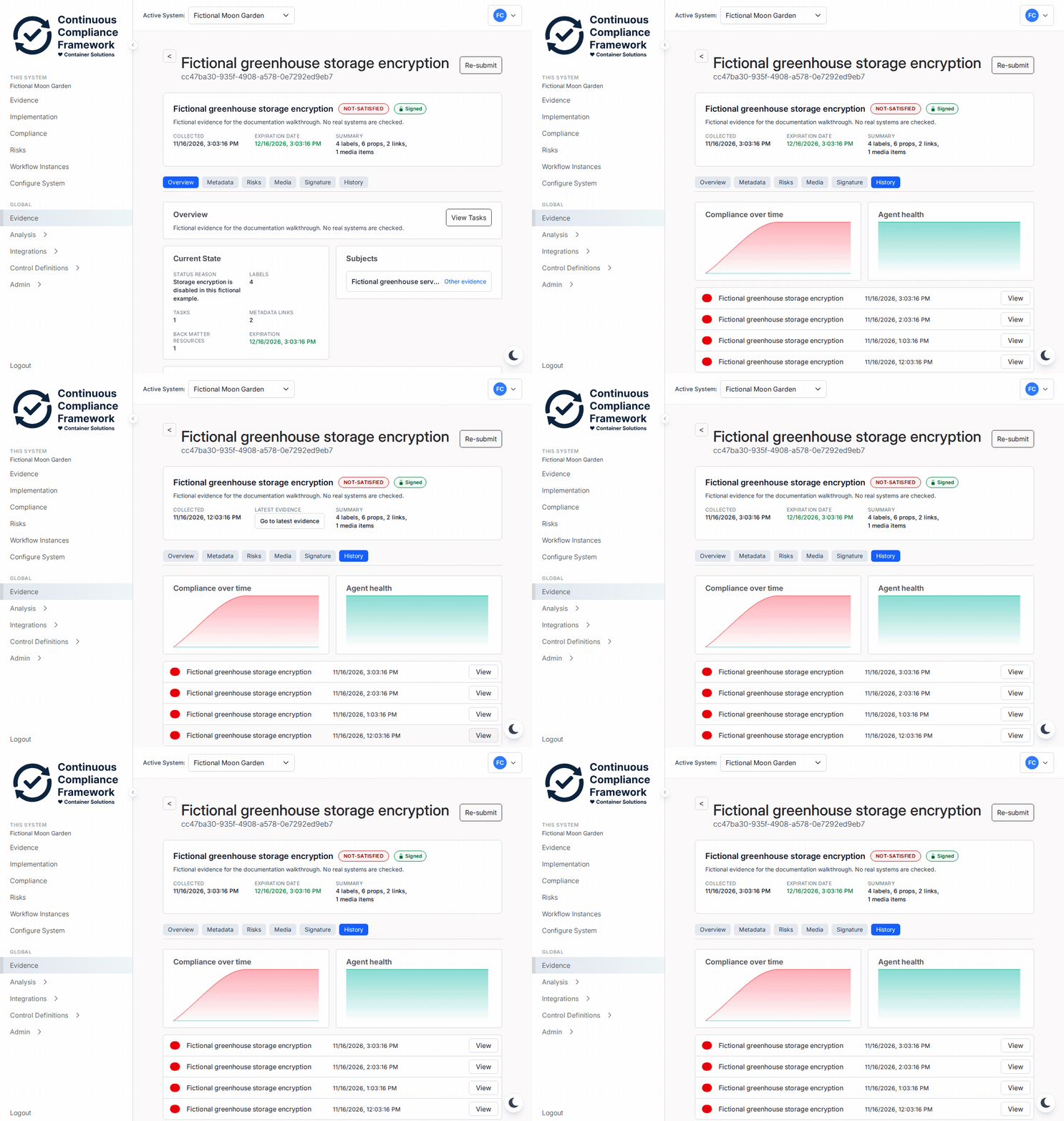
Open History to see Compliance over time, Agent health, and earlier records from the same stream. Select View on an earlier record to inspect it, then Go to latest evidence to return to the newest record.
Evidence filters
To save a search as a filter:
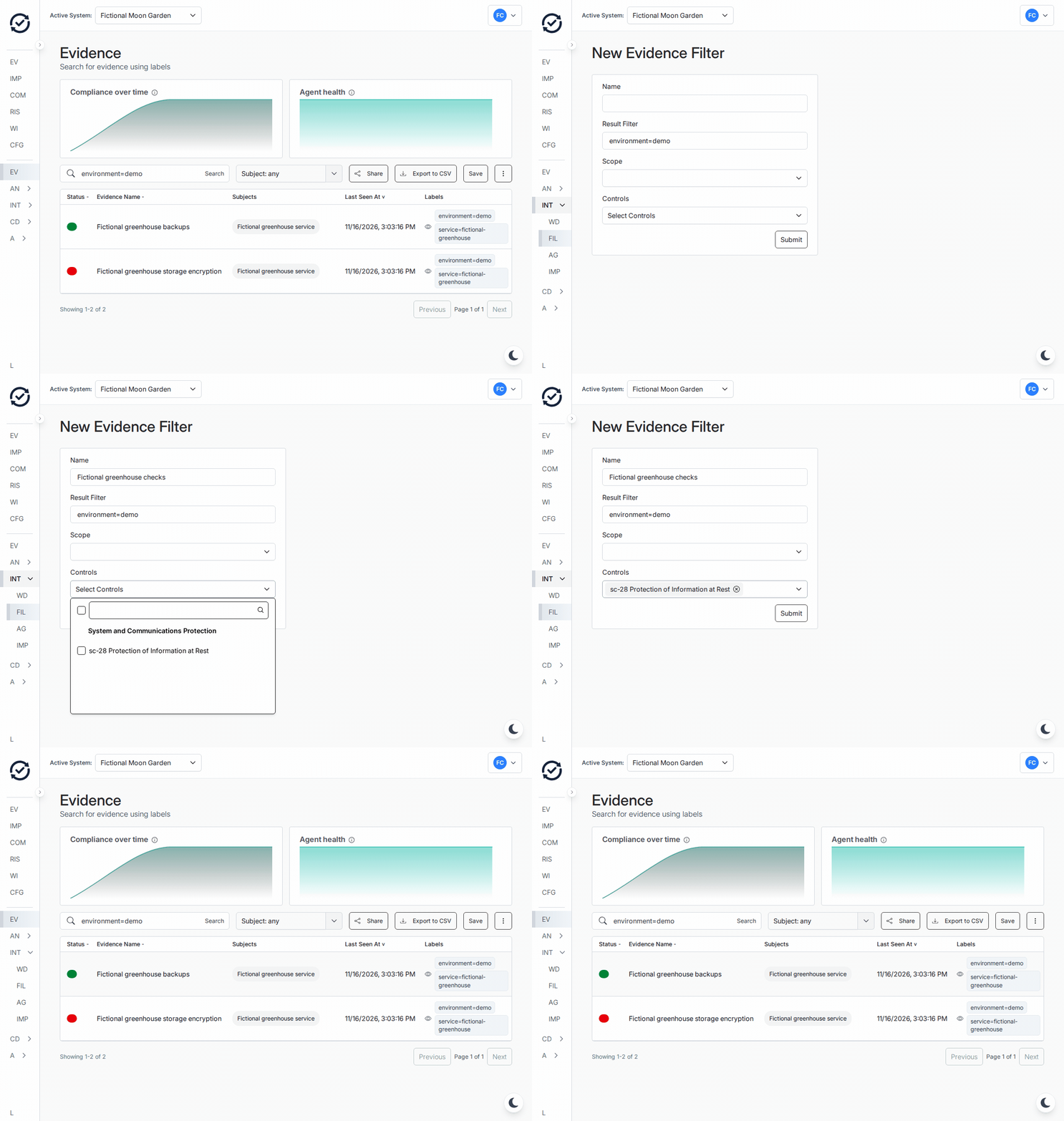
- On Evidence, run the search, then select Save.
- In New Evidence Filter, give it a Name. Result Filter holds your query.
- Choose its Scope: Global, or one SSP. When you save from This System > Evidence, the form selects that SSP.
- For an SSP that has scope entries, leave Follow this SSP's scope selected, as it is by default, if the filter should only find evidence in that scope. If the UI can't read the SSP's scope, it says so and offers Retry; you can't submit the form until the scope is read.
- Select the Controls it's evidence for. When
FILTER_COMPONENT_LINKING_ENABLEDis on, you can link it to Components instead (see the configuration reference). - Submit the form. The UI goes back to the Evidence page you started from, with the filter's query.
A filter that follows its SSP's scope finds the evidence that matches your query and is in the SSP's scope, and it keeps up when the scope changes. When you edit it, Result Filter holds your own query and the form shows the effective filter, with the scope, under it. Clear Follow this SSP's scope to stop following.
When a system has a scope, the label pickers for a filter of that SSP offer only the labels found in its in-scope evidence, so you build the filter from evidence that belongs to the system.
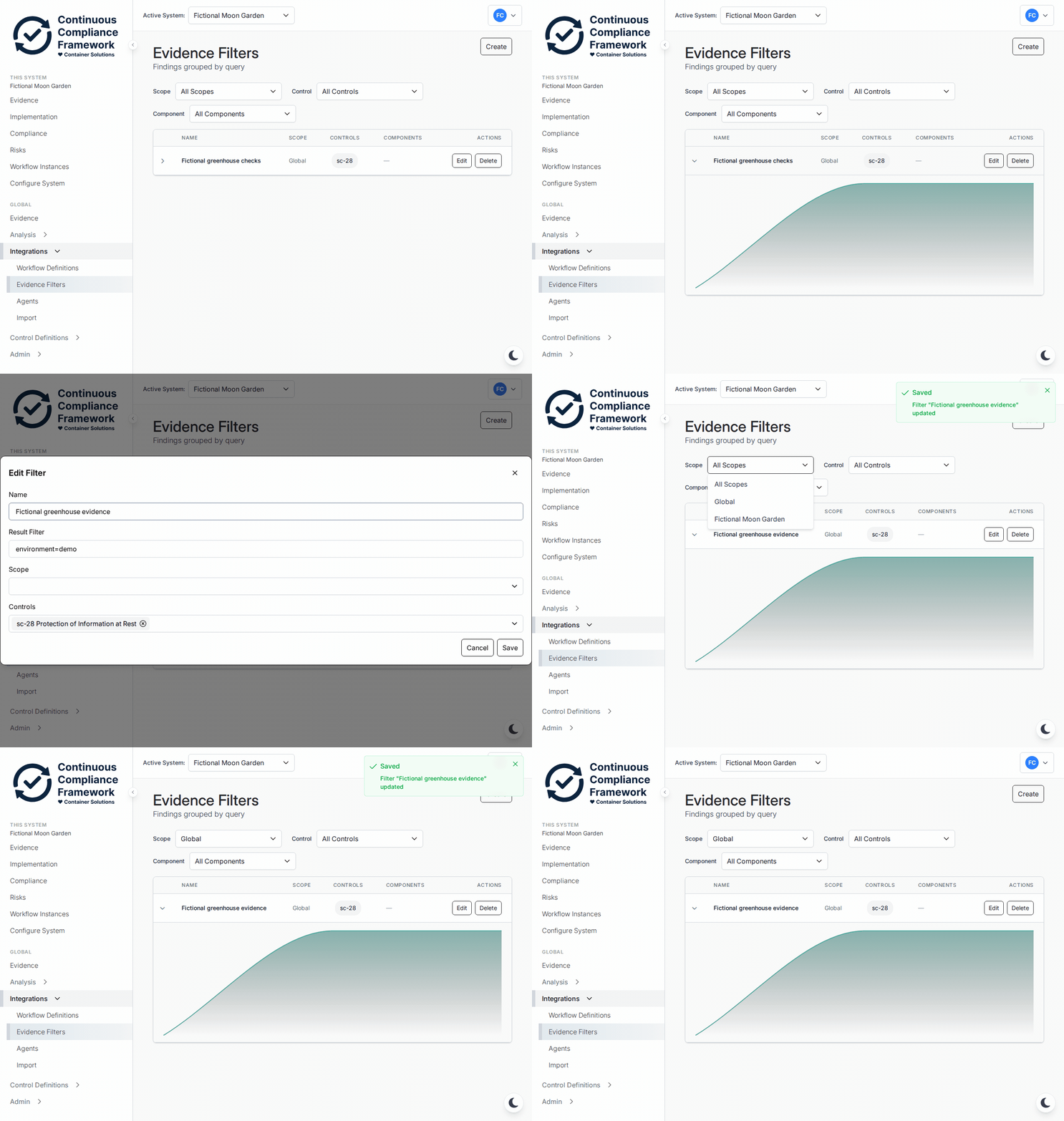
Evidence Filters lists every filter, with Edit and Delete. Narrow the list by Scope, Control or Component.
You can also link filters to a control from the Implementation page; see Controls and the Compliance Map. When the API has AI set up, it can suggest filters for a system's controls: review them under Evidence filter suggestions, then Accept or Reject each one. Without AI, the page says AI is not configured.